

Use the dashboard
Read your workspace summary, pick up the next task and act on renewals or post-launch reviews.
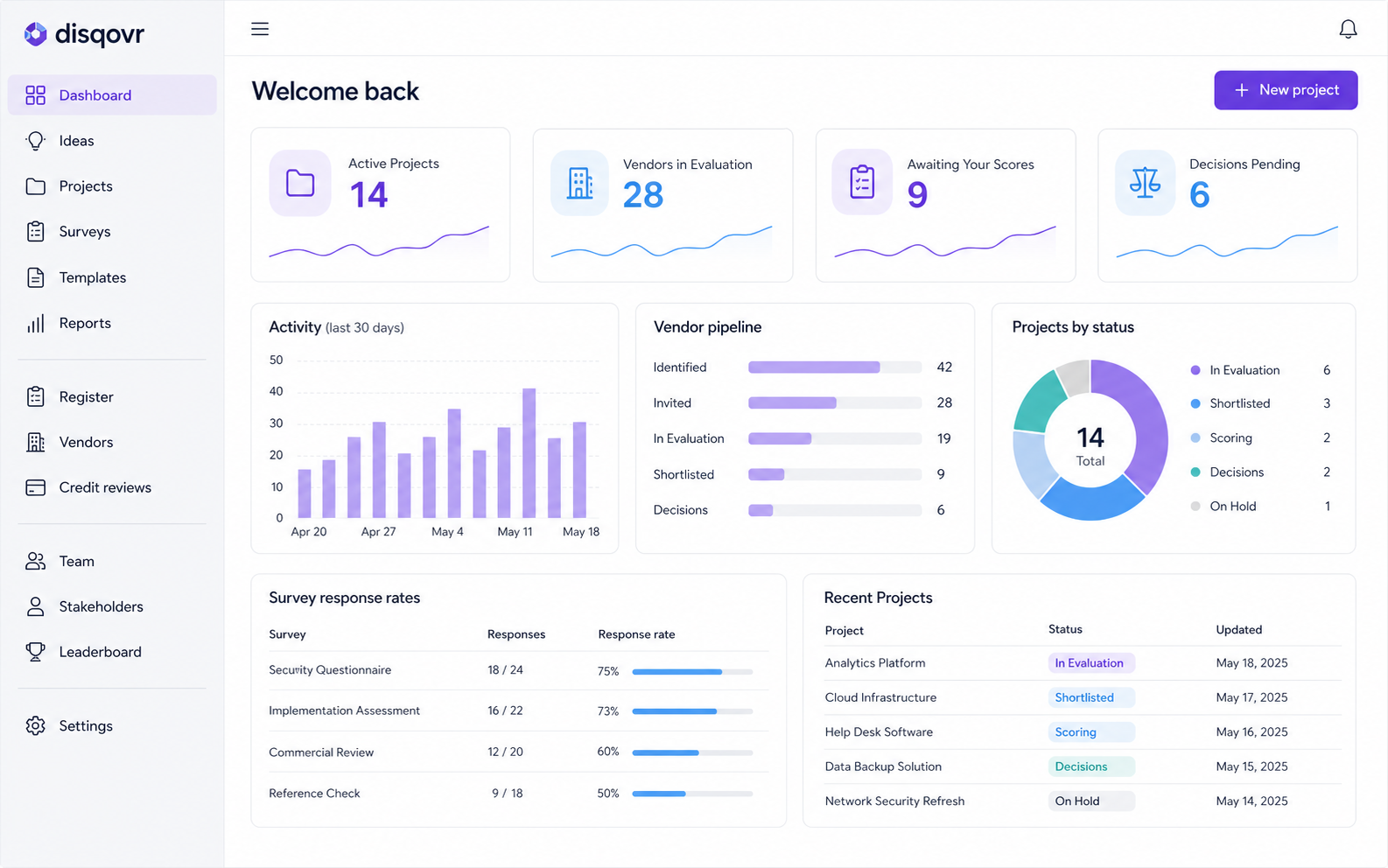
Dashboard is the signed-in home page. It prioritises work you can act on, rather than presenting a second copy of every project. Counts and cards link to the source page where the underlying record is managed.
Before you start
• You must be signed in to a workspace.
• New workspaces may show the setup checklist instead of populated charts.
Step by step
1. Use the quick actions
Select New project, Vendors, Submit idea, View reports, Invite team or Software register at the top. These shortcuts open the same governed workflows as the main navigation.
2. Continue the suggested next step
If Pick up where you left off appears, open it to resume the most relevant incomplete action. The destination is the source project, form or decision page.
3. Read the KPI cards
Active Projects, Vendors in Evaluation, Awaiting Your Scores and Decisions Pending count records you can access. Select a card to drill into the corresponding work list.
4. Act on renewal alerts
An asset nearing its contract end appears with Renew and Start evaluation actions. Renew updates the register record; Start evaluation creates an assessment with that asset preselected.
5. Return to post-launch work
Completed projects can appear under Post-launch value. Select Track value and review to open the Determine section of the project report.
6. Use the operational panels
Review activity trends, vendor pipeline, project status, survey response rates, overdue actions and recent projects. Open a row or chart destination when you need the full record.
What happens next
• Complete the workspace setup checklist if it is still shown.
• Open My Activity when Awaiting Your Scores is highlighted.
Troubleshooting
The dashboard is empty or shows zeros.
Confirm you are in the intended workspace and that you have access to its projects. A genuinely new workspace will remain sparse until projects, vendors, surveys or team activity exist.
A count does not match a project page you can see.
Dashboard cards use specific states, such as active projects or pending approvals. Open the card to see the filtered source list, then refresh after a recent status change.
A renewal does not appear.
Open the Software Register record and check that it has a contract end date. Dashboard renewal alerts depend on the stored date and your access to that asset.
Related guides
Related articles
Still stuck? Contact us →