

Use the project workspace and lifecycle
Use the command centre and lifecycle rail to understand the project, its evidence and its next action.
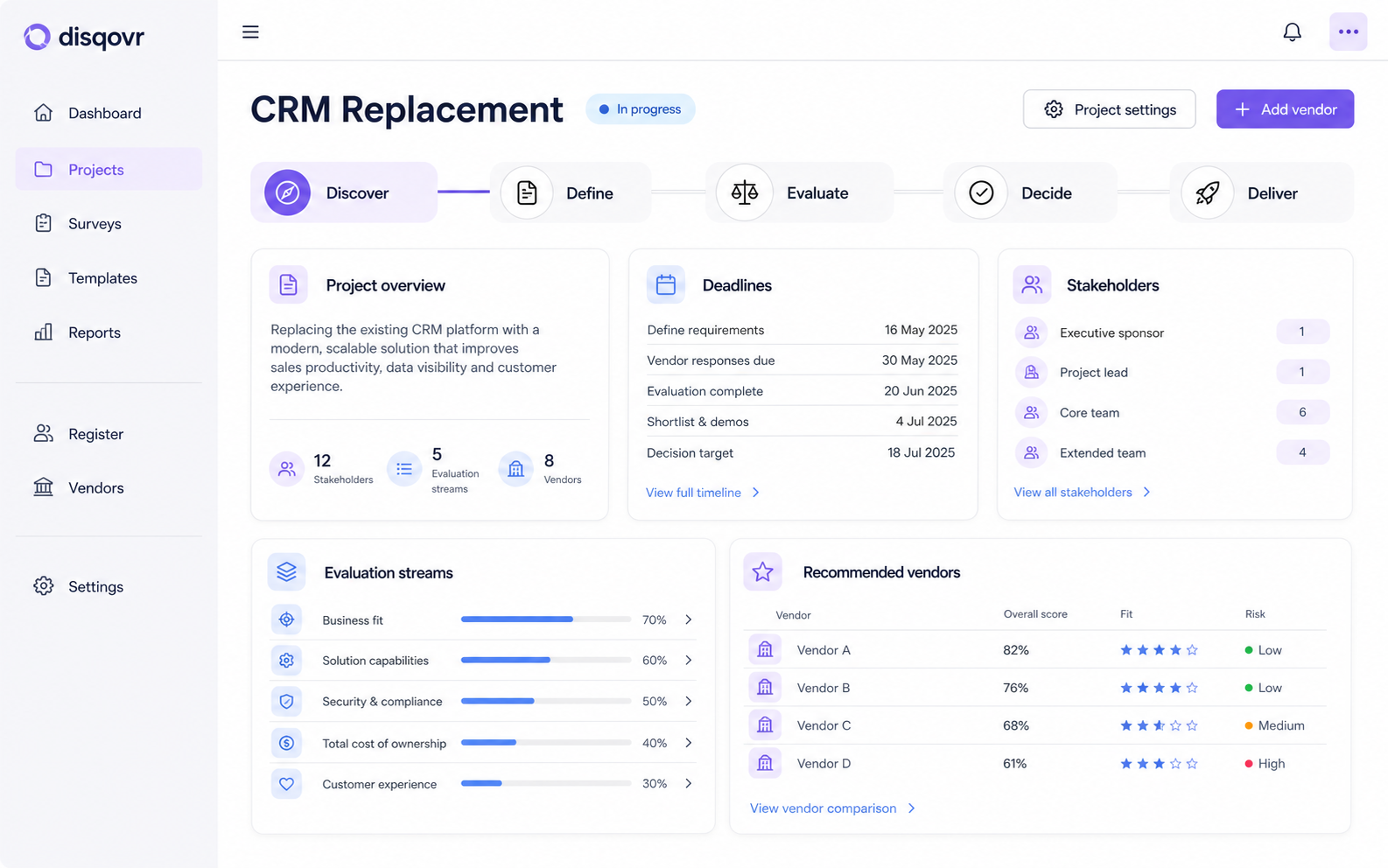
The project workspace is the operating centre for one evaluation. The overview summarises context and evidence, while the left lifecycle rail remains the authoritative route through Define, Discover, Demonstrate, Decide, Deliver and Determine.
Before you start
• You need access to the project.
• Editors may be redirected to Setup until the minimum Define information is complete.
Step by step
1. Read the project header
Confirm the project name, current outcome and key actions. Use the toolbar for supporting views such as files, discussion, activity and settings instead of leaving the project context.
2. Use the lifecycle rail
Expand each phase to see its included stages, completion state and deadlines. The current stage is highlighted, completed work is marked done, and skipped optional work remains distinguishable from completed evidence.
3. Complete Define first
Open the setup steps for the foundation, project team, software and problem, success criteria, capabilities, RFP inputs and incumbent when applicable.
4. Open the working tools
Use the overview tiles for Vendors, Surveys, Demos, Forms & RFI, Compare and Assets. These are direct links to the underlying work, not duplicate summaries.
5. Monitor vendors and evidence
Use Vendors by stage and the project panels to see supplier movement, deadlines, capabilities, stakeholders and evidence gaps. Open a vendor or stage to change its source record.
6. Follow the full outcome loop
After Decide, capture contract and go-live in Deliver. Completed projects remain available in Determine for implementation milestones, value delivered, post-launch surveys and renewal decisions.
What happens next
• Open the active rail step and complete its stated evidence requirement.
• Use Project settings when the approach, dates, access or project outcome must change.
Troubleshooting
Opening the project always redirects to Setup.
The project foundation has not met the minimum readiness check. Complete the required setup information and select Finish setup; users without editing access are not forced through this gate.
A stage is absent from the rail.
The selected evaluation approach may have skipped it. The project owner or admin can open Settings, then Stages & scoring, to enable an untouched optional stage.
A stage looks incomplete even though work has happened.
A stage completes from its recorded completion condition, not simply by visiting the page. Open the stage to find outstanding responses, scores, approvals or its explicit completion control.
Related guides
Related articles
Still stuck? Contact us →